Welcome & Quick Start
Sagitnote is a browser extension that lets you highlight text, draw, and leave notes directly on any web page — then keep, search, sync, and share everything you've annotated.
What is Sagitnote?
Sagitnote (天箭批注) adds an annotation layer on top of the web pages you already read. Everything works in place: you never have to leave the page to mark it up.
- Text highlights — mark any sentence in six colors, with fill, border, underline, wavy, or text-color styles, and attach a note.
- Drawing tools — arrows, rectangle frames, freehand lines, flags, and text notes pinned anywhere on the page.
- Screenshots — capture the whole page or a region as an image annotation.
- Element marks — bookmark a whole element such as a button, image, or link.
- Annotation Manager — every annotation is collected into a single library with folders, search, editing, and export.
- Cloud sync & sharing — keep annotations in sync across devices and share them with others (the free plan is subject to daily creation caps).
Install the extension
-
Install from the store
Install Sagitnote from the Chrome Web Store (Chrome, Edge, and other Chromium browsers) or from Edge Add-ons. You can also find install buttons on the Sagitnote homepage.
-
Pin it to the toolbar
Click the puzzle-piece icon in the browser toolbar and pin Sagitnote so it is always one click away.
-
Open any web page
Visit any page you want to annotate. The floating control panel appears on the page — that is Sagitnote's toolbox. You can drag it anywhere, or minimize it when you don't need it.
-
Register and sign in
Registration is required before you can annotate: create a free account (or sign in with an existing one). After signing in once, your account information is kept in this browser — from then on Sagitnote also works offline, and your annotations are stored locally on this device.
Sagitnote works on ordinary web pages and on local files opened in the browser. It does not run on the browser's own pages, such as the New Tab page or the Chrome Web Store.
Your first annotation
The quickest way to see Sagitnote in action: highlight a sentence and attach a note to it.
-
Select some text
Drag to select any sentence on the page, just as you would to copy it.
-
Pick a style
A small style picker appears next to the selection. Choose a color (or a style such as underline) and the highlight is applied instantly.
-
Add a note
Right after highlighting, click the pen button in the picker to write a note and add tags — you can choose whether the note appears on hover or is always visible. To edit it later, open Browse (the count button) and click the annotation's edit (pencil). Your note stays attached to that sentence.

Turn on Auto in the control panel and every text selection is highlighted automatically with your current color — handy when you are marking up a long article.
The floating control panel
The control panel is Sagitnote's toolbox. It sits on top of the page and contains everything you need:
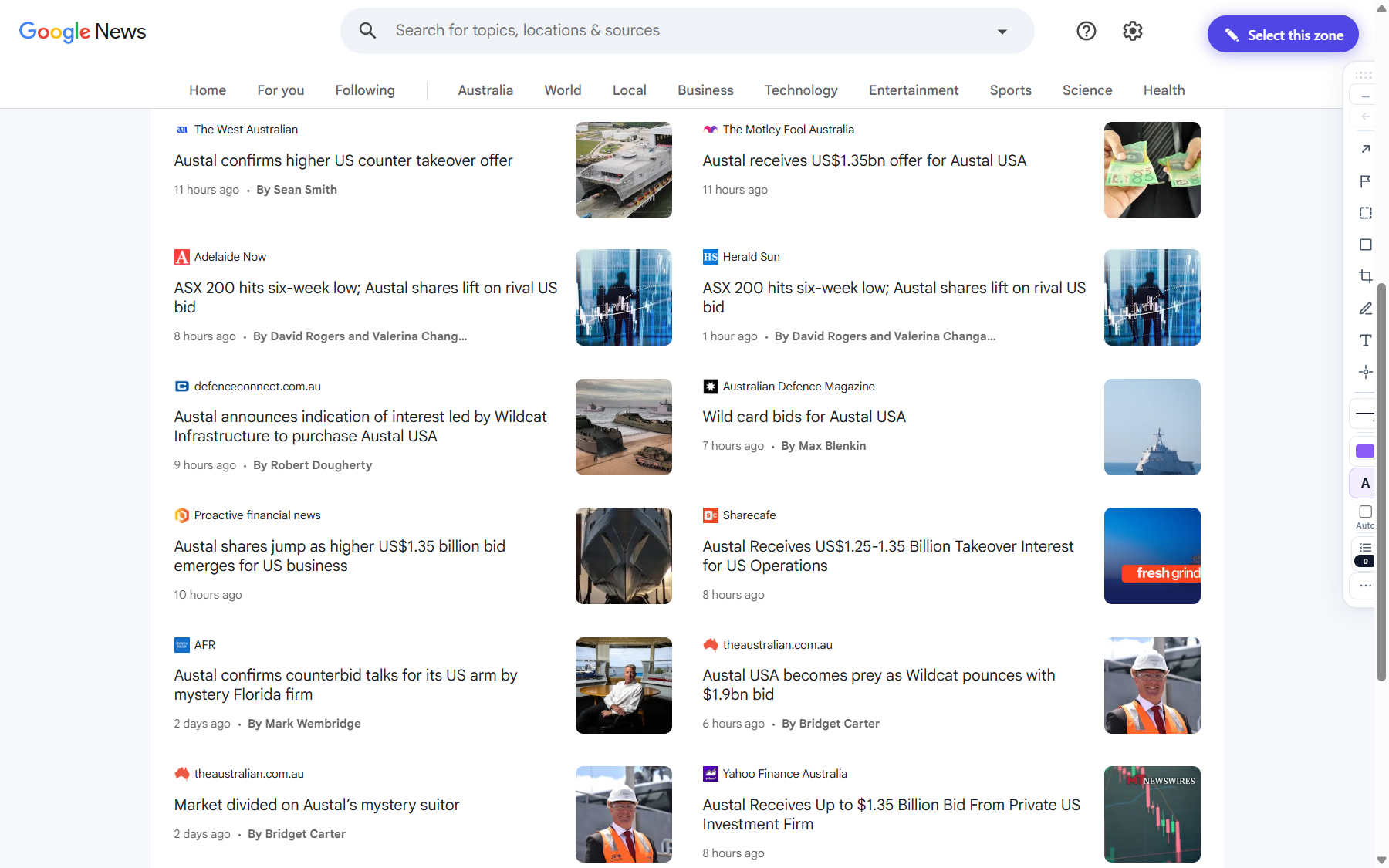
- Tool buttons — arrow, flag, rectangle frame, image rectangle, page screenshot, freehand line, text note, and element mark.
- Style controls — line width, color, and style for the active tool.
- Browse — open the list of annotations on the current page.
- Popups toggle — close every open annotation popup on the page at once.
- More (⋯) — page note, favorites, import/export, the Annotation Manager, snapshots, sharing, settings, and help.
Drag the panel's handle to move it, or minimize it while reading. See Annotation Tools for a tour of every tool.
Pages with embedded frames
Some pages embed other documents inside them (iframes). On those pages Sagitnote asks which area you want to annotate: each eligible area shows a “✎ Select this zone” pill. Click the pill on the area you want — for most pages the main article is the right choice.
Where your data lives
- Register once, and your session stays in this browser — you need to register and sign in once before annotating. After that your account is kept in this browser and annotations are saved in its local storage, so you can keep working offline.
- Cloud sync — press Sync now to back up annotations and keep multiple devices up to date (available on both Free and Pro).
- Export anytime — export the current page or your whole library as a file backup from the More menu or the Annotation Manager.